

⚠ Temporary Notice: Our official Xtreme HD IPTV app is currently not working for new users.
Please use IPTV Smarters Pro as an alternative player until our official app is restored. Existing users can continue using the official app without issues.
If you are a new subscriber and want to start streaming immediately, follow this complete step-by-step guide to set up Xtreme HD IPTV on Firestick (2026) using IPTV Smarters Pro.
✅ What You Need Before Starting
- Amazon Firestick (any model)
- Active Xtreme HD IPTV subscription (provided by us)
- Login details:
- Xtream Codes (Username + Password + Server URL)
OR - M3U Playlist URL
- Xtream Codes (Username + Password + Server URL)
- Stable internet connection
🔥 Step 1 – Prepare Your Firestick
Since IPTV Smarters Pro may not always be available in the Amazon App Store, you need to enable installation from unknown sources.
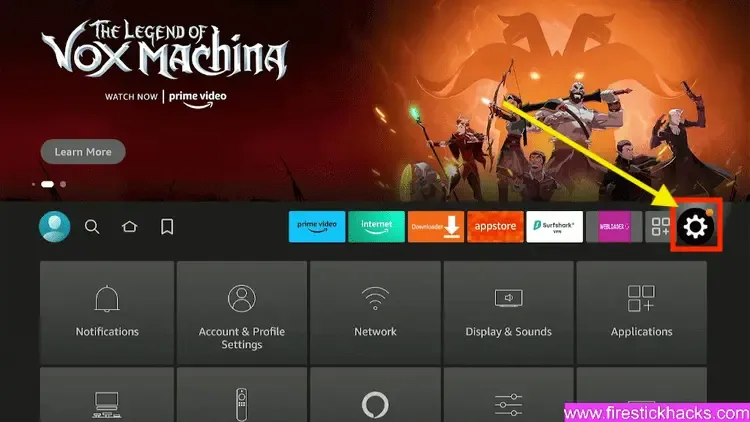
- Step 1: Enable Unknown Sources Begin by preparing your Firestick for the Xtreme HD IPTV installation:Head to the ‘Settings‘ from your Firestick’s home screen.
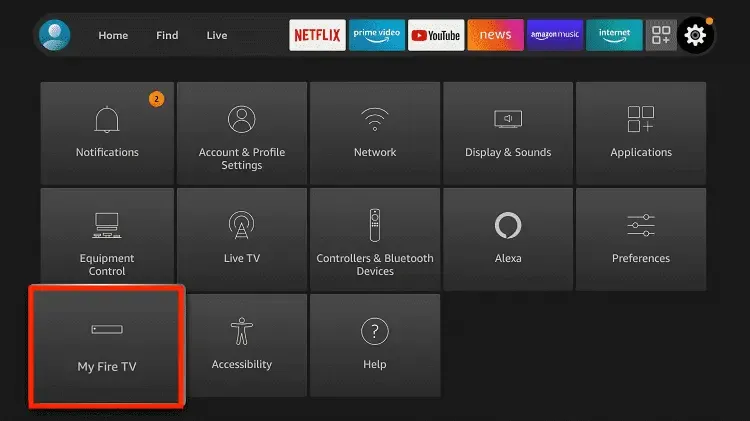
- Scroll to select ‘My Fire TV’ > About > highlight Fire TV Stick 4K Max (or any other depending on the device you own) and Press the OK button 10 times to enable Developer Options.
- Turn ON:
- Apps from UnThe first step is now completed and let’s move to the next Step to Get the Downloader, after getting the app we have to Enable the Unknown Sources for Downloader app in the next guide,
- Step 2: Get Downloader App on Firestick
- The Downloader app is a vital tool for Firestick users looking to sideload applications not available on the Amazon App Store. It’s a user-friendly app that allows you to directly download and install third-party apps onto your Firestick by entering the app’s URL or browsing the internet.
- With its straightforward interface, the Downloader app simplifies the process of obtaining and running APK files, thus opening up a broader range of entertainment options beyond the default selections.
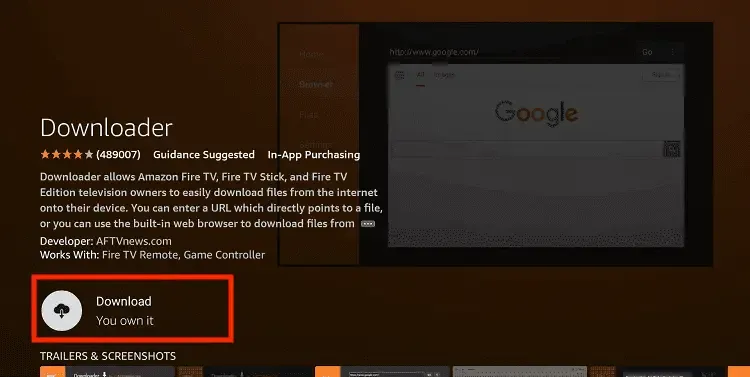
- Follow the below steps to get the Downloader instantly on Firestick, or from Google Play Store (for Android device users):
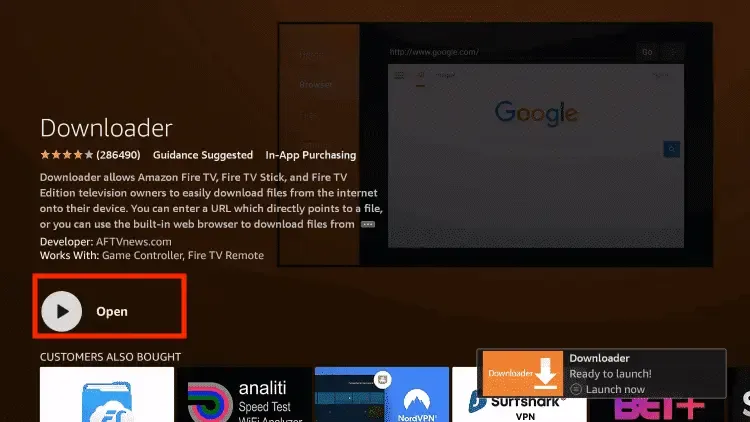
- Go to Home Screen and from the Menu click on Find or Magnyfying Glass icon.
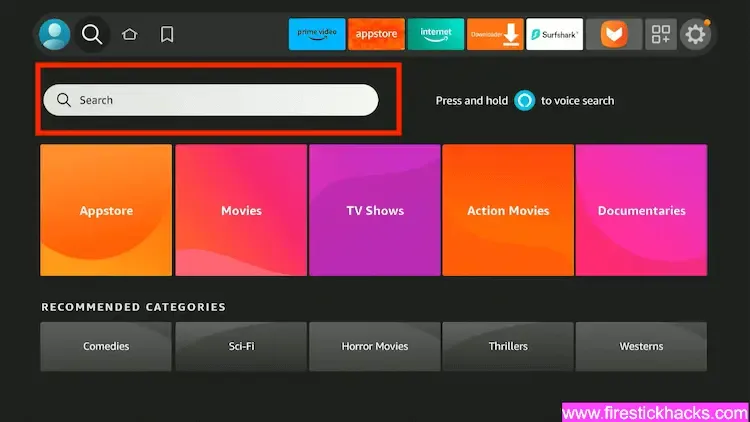
Type the “Downloader” using the On–Screen keyboard.
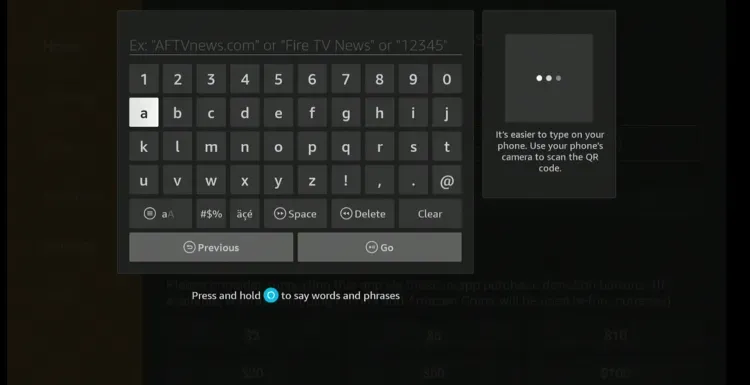
Type the “Downloader” using the On–Screen keyboard. and Install it
Enable Unknown Sources 1.2:
To ensure the Downloader app can install Xtreme HD IPTV on your device, follow these steps:
1. Navigate to your device’s Settings > My Fire TV > Developer Options within the My Fire TV menu.
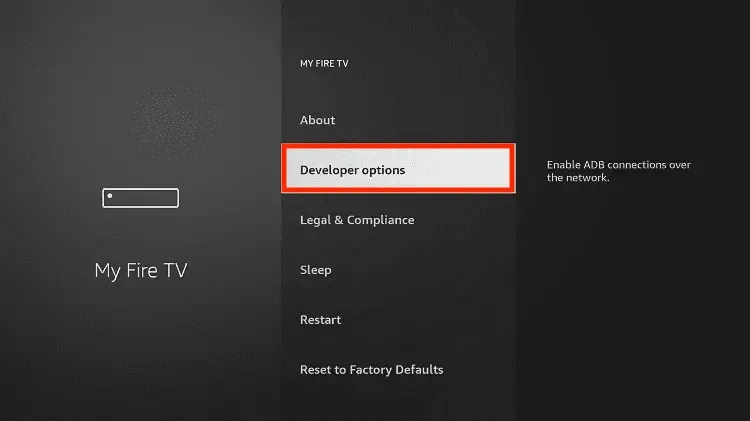
By enabling this setting, you grant the Downloader app permission to install third-party applications, like Xtreme HD IPTV, which are not available through the official app store.
Step 3: Download and Set up Xtreme HD IPTV
Now that we have enabled Unknown Sources for Downloader, we are finally ready for the last step to get the Xtreme HD IPTV app and set up the app, check the below steps with screenshots and avoid making any errors.
- Go to the Home Screen and click on the Applications icon next to the Profile.
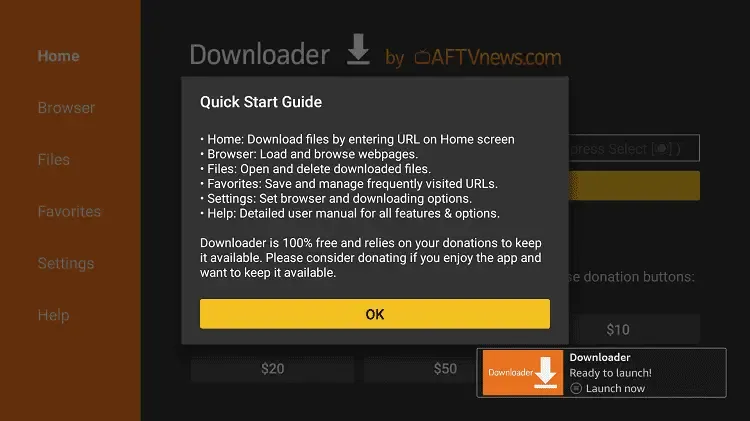
Hit Got it when the Quick Guide Menu pops up.
New Code for IPTV Smarter Pro -> 6468112
- Now click on the Empty Box and using the keyboard type this Code: 6468112
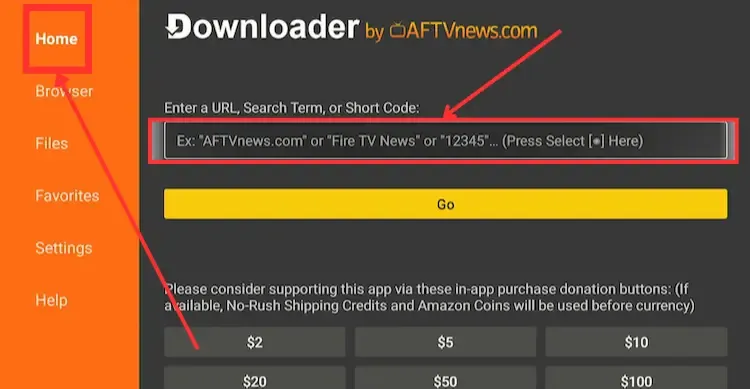
Wait there for 5 seconds and it will automatically Redirect and Download the app.
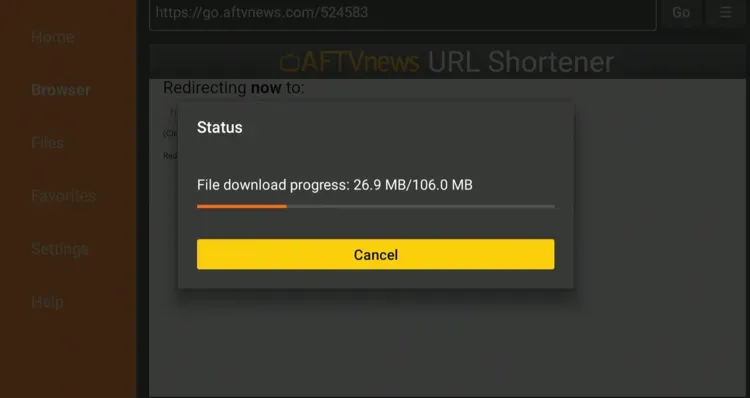
📥 Alternative Method – Install IPTV Smarters Pro
Check If Available in App Store
- Go to Firestick Search
- Type IPTV Smarters Pro
- Download and install
🔑 Step 2 – Add Your Xtreme HD IPTV Account on IPTV Smarter Pro
When you open IPTV Smarters Pro for the first time, you will see login options.
You can choose one of the two setup types:
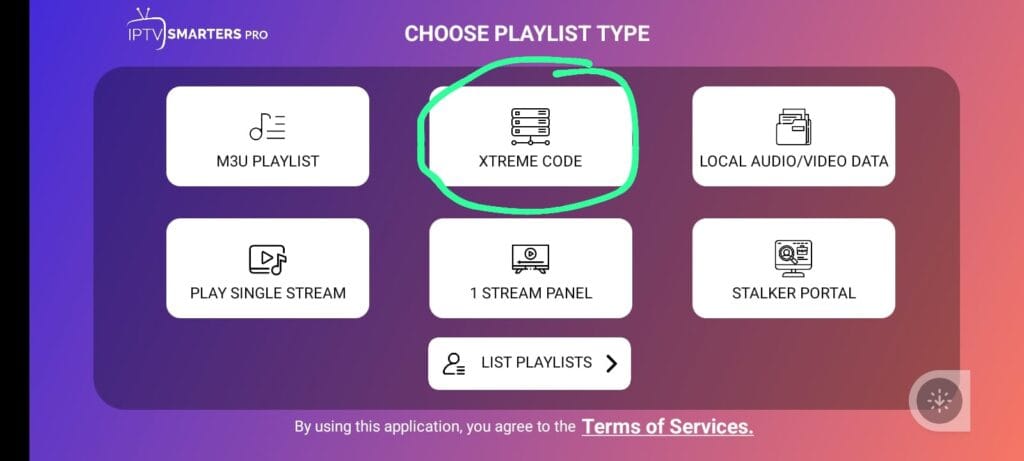
OPTION 1: Setup Using Xtream Codes (Recommended)
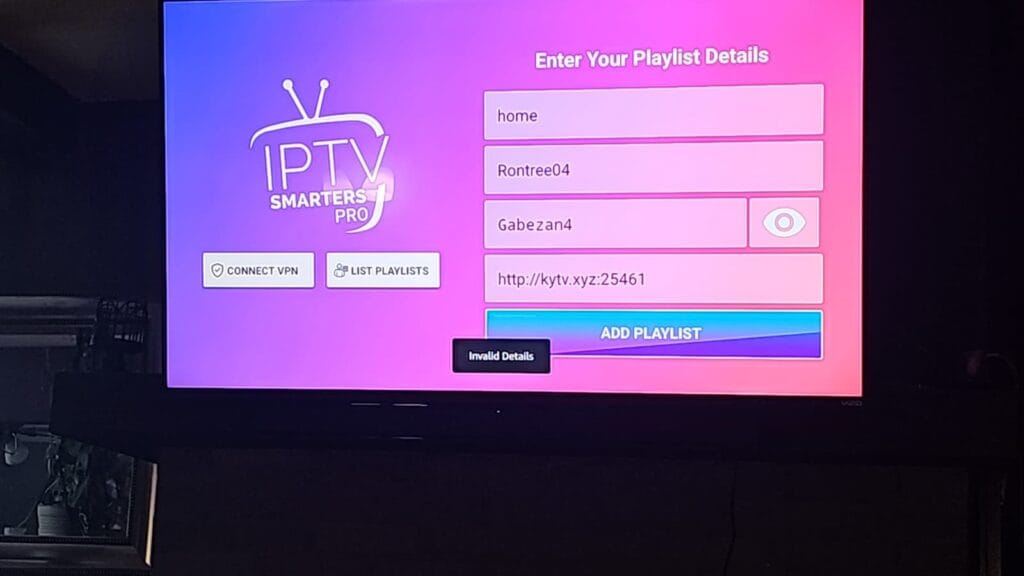
This is the easiest and most stable method.
- Select Login with Xtream Codes API
- Enter:
- Any name (e.g., Xtreme HD)
- Username (provided by us)
- Password (provided by us)
- Server URL (provided by us)
- Click Add User
- Wait for channels to load
OPTION 2: Setup Using M3U Playlist
If you prefer M3U:
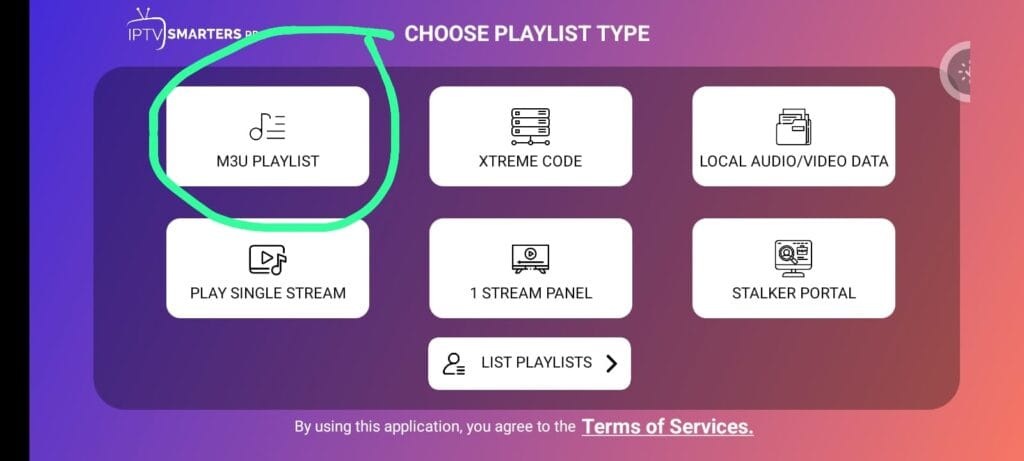
- Select Load Your Playlist or File/URL
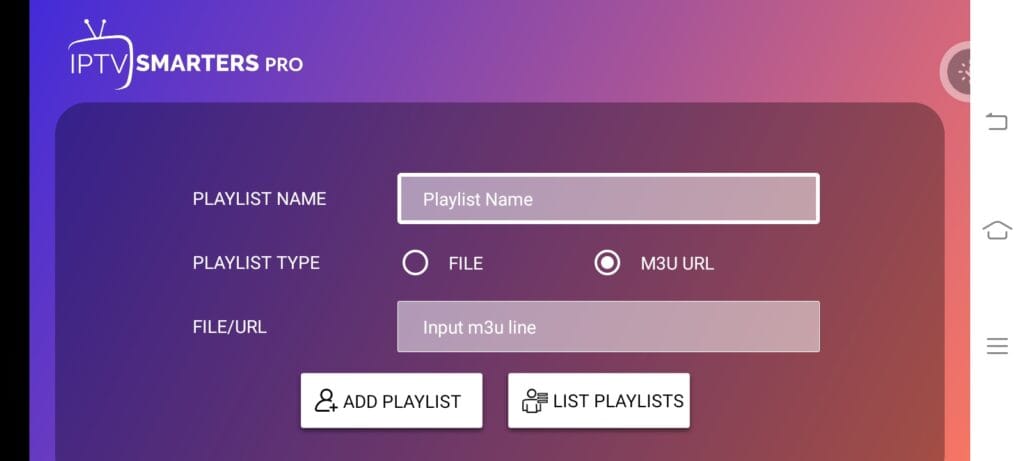
- Choose M3U URL
- Enter:
- Playlist Name (any name)
- M3U URL (provided by us)
- Click Add PLaylsit
- Wait for playlist to load
⚠ Note:
M3U links are long and harder to type with Firestick remote. Xtream Codes is usually better.
🎬 How to Use After Login
Once logged in, you will see:
- 📺 Live TV
- 🎥 Movies
- 📂 Series
- 📅 TV Guide (EPG)
You can:
- Add channels to Favorites
- Use search option
- Change video player inside settings
- Adjust buffering settings if needed
🚀 Fix Common Issues
If Channels Not Loading:
- Double-check username & password
- Make sure Server URL is correct (no extra spaces)
- Restart Firestick
If Buffering:
- Restart router
- Use wired Ethernet adapter (recommended)
- Close background apps
🔐 Important Notice
- IPTV Smarters Pro is only a media player.
- It does not provide channels.
- You must have an active subscription with us (Xtreme HD IPTV).
📌 Final Words
Until our official Xtreme HD IPTV app is restored for new users, IPTV Smarters Pro is the best alternative solution for Firestick in 2026.
If you need your login details again or face any issue, contact our support team and we will assist you immediately.
