

What You’ll Need Before You Start
- An Amazon Fire TV Stick
- A Stable Internet Connection
- An IPTV Subscription from a reputable provider Click Now to Buy. They will give you a URL (an M3U playlist link) or a username/password for Xtream Codes.
- A VPN (Highly Recommended): Services like NordVPN, ExpressVPN, or Surfshark protect your privacy and can help avoid ISP throttling.
Step 1: Prepare Your Fire TV Stick (Enable Developer Options)
This is the most crucial first step, allowing you to install apps from outside the Amazon Appstore.
- From the Firestick home screen, go to Settings (the gear icon at the top).
- Select My Fire TV (or Device on older models).
- Click on Developer Options.
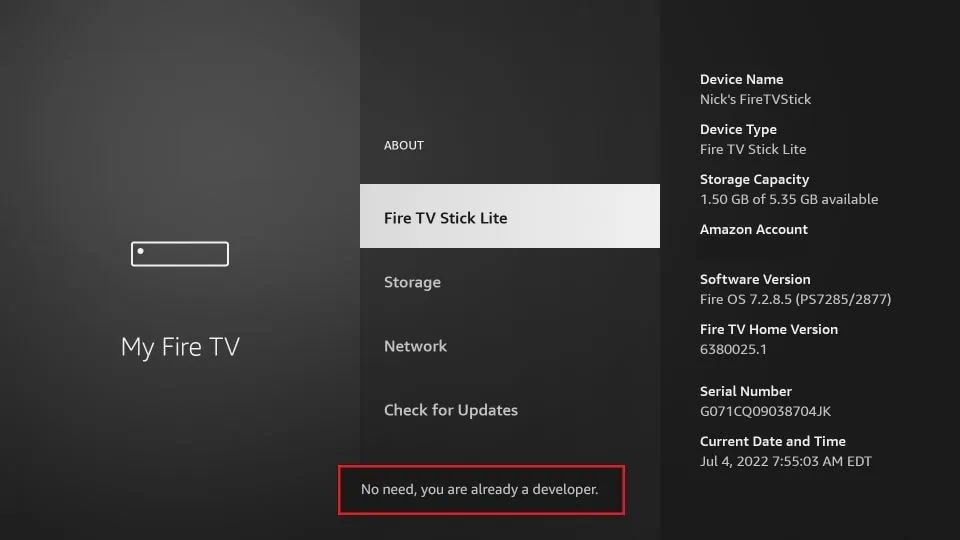
- If you don’t see this, go to About and click on “Fire TV Stick” 7 times until you see a message: “You are now a developer!”
- Inside Developer Options, turn ON these two settings:
- Apps from Unknown Sources
- ADB Debugging
- A warning pop-up will appear. Click Turn On.
Step 2: Install the Tivimate App
You need a media player to load and watch your IPTV service. The most popular and reliable option is Downloader, a tool that lets you easily install other apps.
Method A: Install “Downloader” from the Amazon Appstore
- Use the search function (magnifying glass icon) on your home screen and type in “Downloader”.
- Select the Downloader app by AFTVnews and click Download or Get.
- Once installed, open the app. It will ask for permission to access files. Click Allow.

Method B: Install an IPTV Player Directly via Downloader
Now, use Downloader to install a dedicated IPTV player. We recommend Tivimate (premium features require a one-time purchase) or Smarters Player (free with a pro version).
To Install Tivimate:
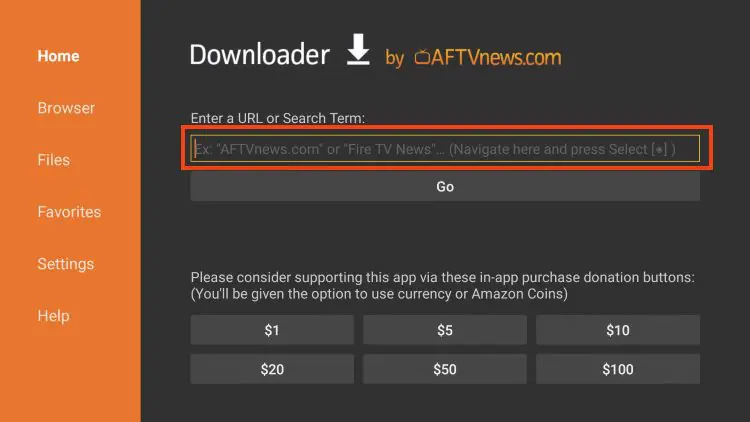
- Open the Downloader app.
- In the URL field, enter the following code 272483 to download the latest version of Tivimate:
- Click Go. The app will download and install automatically.
- Once installed, click Open or Done. You can now find Tivimate in your app list.
If Your Provider Gave You an M3U Playlist URL:
- Open the Tivimate app.
- Go to the Settings tab (the gear icon).
- Select Playlists.
- Click the Add Playlist button.
- Choose Enter URL.
- Carefully type or paste the M3U URL provided by your IPTV service.
- Click Next. Tivimate will fetch the playlist and EPG (Electronic Program Guide) data.
- You can edit the playlist name if you wish, then click Done.
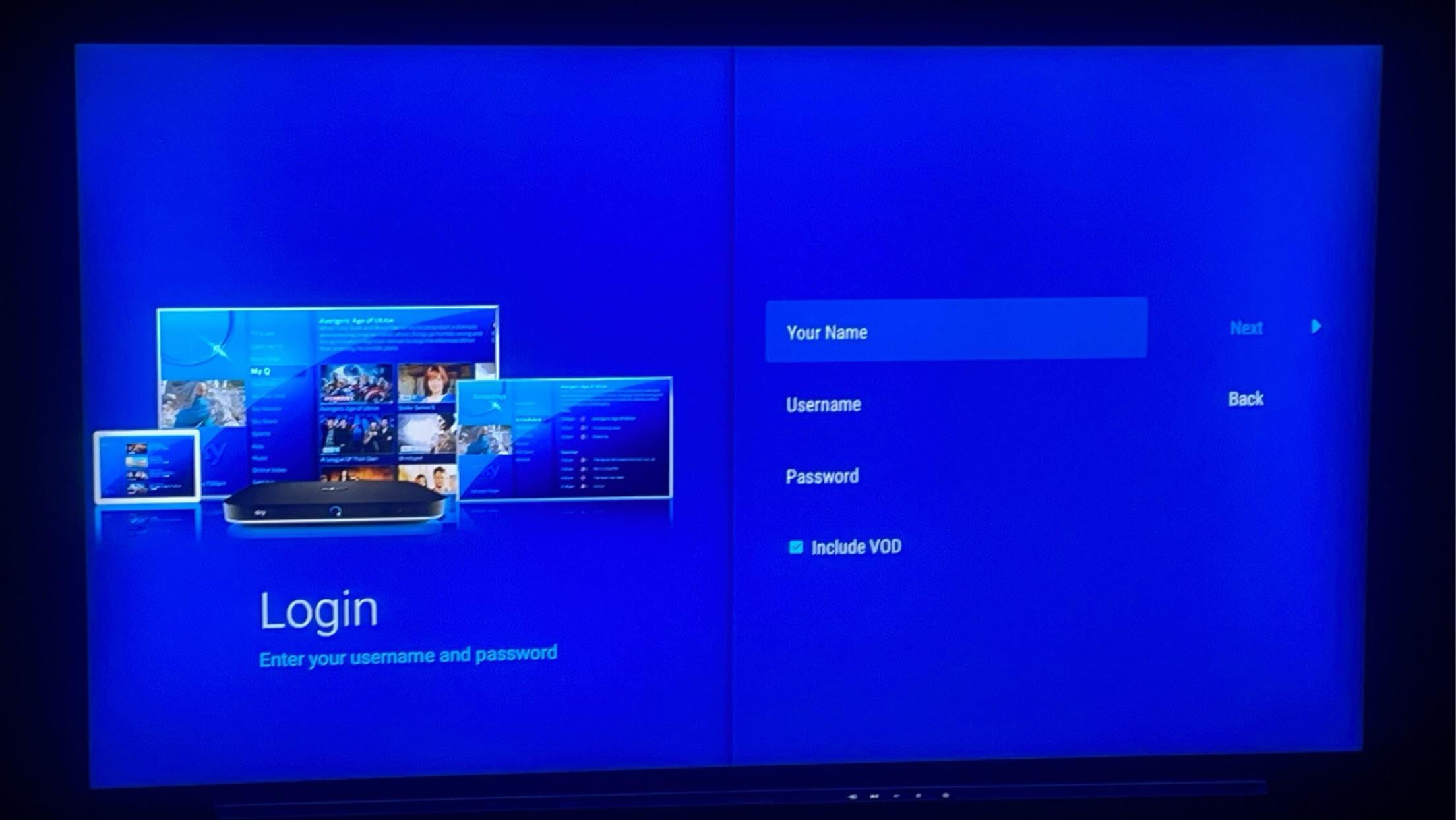
- Instead of “Enter URL,” choose Xtream Codes API.
- Fill in the fields provided by your service:
- Username: Your username
- Password: Your password
- URL: The server URL
Your playlist will now load. You can go back to the main screen and start browsing through the channel categories!
Step 5: Optimize Your Experience
- Organize Favorites: Long-press the OK button on a channel to bring up a menu and add it to Favorites.
- Use the TV Guide: The EPG is your best friend. Press the “Guide” button to see what’s on across all channels.
- Clear Cache (If Buffering): If you experience buffering, go to Firestick Settings > Applications > Manage Installed Applications > [Your IPTV Player] > Clear Cache.
